1. Will My Computer Run TangoPosture?
Good news: you do not need a gaming graphics card. TangoPosture runs its body-tracking engine locally on your main processor (CPU), so any reasonably modern laptop from the past few years handles live 20–30 FPS practice smoothly.
Windows (64-bit)
Works on: Windows 10 (21H2+) or Windows 11 (64-bit x64).
Best experience: 6-core CPU (Intel 12th Gen+ or Ryzen 5000+), 16 GB RAM, 1920×1080 screen, and 20 GB free SSD space for video archives.
Minimum: 8 GB RAM, 4-thread AVX2 CPU, 3 GB space.
Mac (Apple Silicon & Intel)
Works on: macOS 13 Ventura, 14 Sonoma, or 15 Sequoia.
Best experience: Apple M1 / M2 / M3 / M4 (with native audio+video recording). Intel Macs run great via source install (uv).
Minimum: 8 GB unified memory, 3 GB free space.
Linux (x86_64)
Works on: Ubuntu 24.04 LTS (prebuilt bundle) or Ubuntu 22.04+, Debian 12+, Fedora 39+ via source install.
Best experience: X11 or Wayland desktop with PortAudio & OpenGL Mesa drivers, 16 GB RAM.
.tp or .tpr
archive uses around 50–150 MB. Keeping 20 GB free gives you room for dozens of solo and
couple sessions.
2. Install TangoPosture
Pre-built installers include the desktop studio and the fast Lite pose model right out of the box. Choose your operating system below:
- Download
TangoPosture-Windows-x64-Setup.exeandSHA256SUMS.txtfrom GitHub Releases. - Optional security check in PowerShell (compare the printed hash to
SHA256SUMS.txt):Get-FileHash .\TangoPosture-Windows-x64-Setup.exe -Algorithm SHA256 Get-Content .\SHA256SUMS.txt - Double-click the installer. It installs cleanly for your user account (no admin password needed).
- If Windows SmartScreen asks to confirm (the installer is community-published and unsigned), click More info → Run anyway after checking the hash.
- Open TangoPosture from your Start Menu. Your practices and calibrations stay neatly in
%LOCALAPPDATA%\TangoPosture.
- Download
TangoPosture-macOS-arm64.dmgandSHA256SUMS.txtfrom GitHub Releases. - Verify the download in Terminal:
shasum -a 256 ~/Downloads/TangoPosture-macOS-arm64.dmg cat ~/Downloads/SHA256SUMS.txt - Open the
.dmgand drag TangoPosture.app into Applications. - On first launch, macOS Gatekeeper may warn that the app isn't notarized. Dismiss the popup, open System Settings → Privacy & Security, scroll down, click Open Anyway, and confirm Open.
- Allow Camera and Microphone access when asked so live practice and 8-beat tracking can work.
- Ensure host Qt6, OpenGL, PortAudio, and V4L2 libraries are installed and your user belongs to the
videoandaudiogroups (see developer section below if missing). - Download
TangoPosture-Linux-x64.tar.gzandSHA256SUMS.txtfrom Releases. - Verify, extract, and launch:
sha256sum -c SHA256SUMS.txt --ignore-missing tar -xzf TangoPosture-Linux-x64.tar.gz ./TangoPosture/TangoPosture - Your archives live under
~/.local/share/TangoPosture(or$XDG_DATA_HOME/TangoPosture).
Developer, Intel Mac & Source Installation (via uv)
Source installation works on Windows, Apple Silicon, Intel Macs, and Linux distributions using Python 3.11:
macOS & Linux:
curl -LsSf https://astral.sh/uv/install.sh | sh
git clone https://github.com/TangoMovementLabs/TangoPosture.git
cd TangoPosture
uv python install 3.11
uv sync --frozen
uv run tango-posture models fetch
uv run tango-posture qt
Windows (PowerShell):
powershell -ExecutionPolicy ByPass -c "irm https://astral.sh/uv/install.ps1 | iex"
git clone https://github.com/TangoMovementLabs/TangoPosture.git
cd TangoPosture
uv python install 3.11
uv sync --frozen
uv run tango-posture models fetch
uv run tango-posture qt
Ubuntu / Debian system libraries: libgl1 libegl1 libxkbcommon-x11-0 libxcb-cursor0 libxcb-icccm4 libxcb-image0 libxcb-keysyms1 libxcb-randr0 libxcb-render-util0 libxcb-shape0 libxcb-xinerama0 libportaudio2 v4l-utils ffmpeg
Air-Gapped / Offline Model Files & Exact SHA-256 Checksums
Live Practice and Self Calibration never download files at runtime. For offline studios, copy the verified .task files into models/ or <data_dir>/models/:
| Model Variant | Used For | Required SHA-256 |
|---|---|---|
pose_landmarker_lite.task | Live Practice, Self Calibration & default offline | 59929e1d1ee95287735ddd833b19cf4ac46d29bc7afddbbf6753c459690d574a |
pose_landmarker_full.task | Offline Video Analysis & Review (full) | 5134a3aad27a58b93da0088d431f366da362b44e3ccfbe3462b3827a839011b1 |
pose_landmarker_heavy.task | Maximum-detail offline analysis (heavy) | 64437af838a65d18e5ba7a0d39b465540069bc8aae8308de3e318aad31fcbc7b |
3. Set Up Your Practice Space for Reliable Tracking
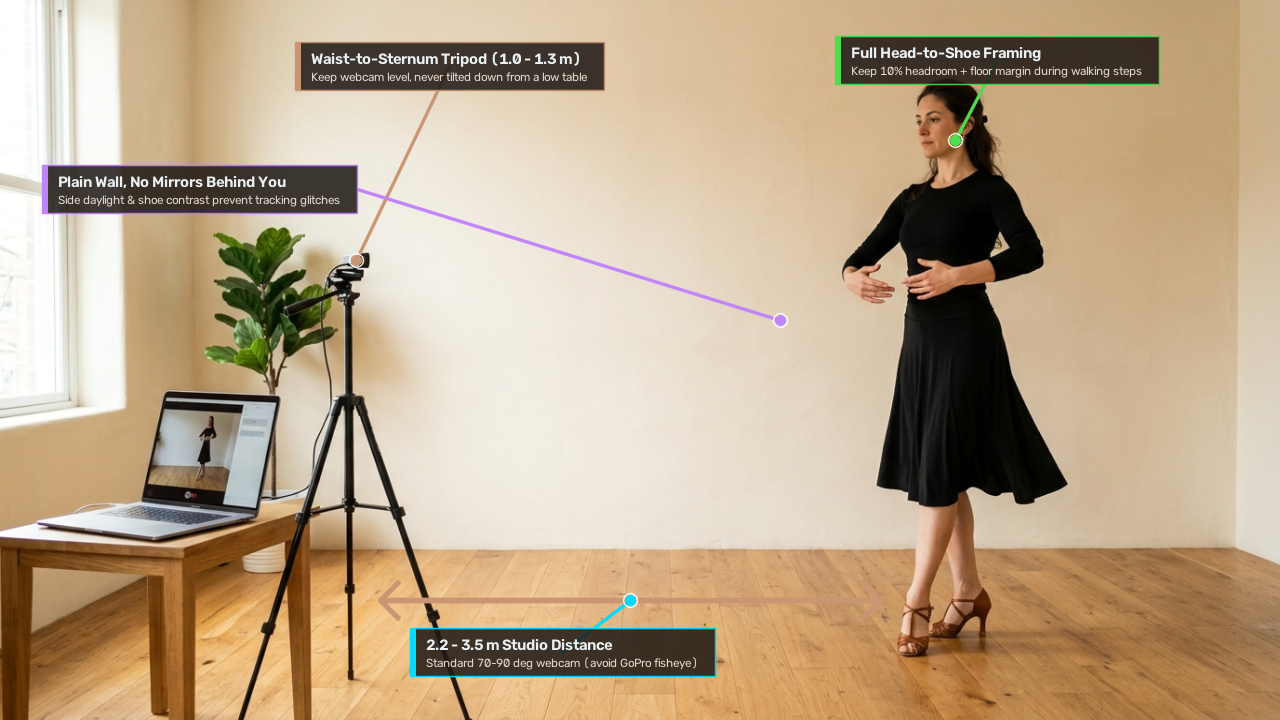
TangoPosture measures angles directly from the image. Giving the camera a clean, level view of your whole body makes every overlay rock-steady—whether you are practicing solo walks or couple giros.
Height & Level Horizon
Mount your webcam on a tripod at waist-to-sternum height (1.0–1.3 m) and keep it level. A laptop sitting low on a chair tilts upward and skews torso tilt and head angles.
2.2 – 3.5 m Distance + Full Body Margin
Step back until your entire body—hair to tango shoe soles—fits comfortably with ~10–15% margin above your head and below your feet, even mid-stride.
No Mirrors Behind You!
During solo practice or calibration, a studio mirror behind you creates a "second dancer" reflection that makes single-dancer gates pause. Angle the camera away from mirrors.
Contrast & Even Lighting
Bright front or side light beats backlighting from a sunny window behind you. Wear clothing and shoes that contrast with your floor so ankles and heels stay sharp.
4. Choosing & Framing a Camera (Solo & Couple)
- One camera is enough—even for couples: TangoPosture detects up to two dancers (Dancer A and Dancer B) from a single wide-enough camera view.
- Use a normal 70°–90° webcam: Standard USB webcams (Logitech C920/Brio, Elgato Facecam, built-in laptop cams, or iPhone Continuity Camera) keep straight plumb lines straight. Avoid ultra-wide 120°–170° action-cam fisheye modes.
- Keep frame rate steady at 15–30 FPS: In dim studio lighting, some webcams slow down to 7–10 FPS to brighten the image. Turn off aggressive "low-light compensation" in your webcam app so TangoPosture never triggers a camera-stall warning.
- 720p or 1080p helps at studio distances: While 640×480 works, 1280×720 gives cleaner ear, shoulder, and ankle tracking when you are 3 meters from the lens.
- Close other video apps first: On Windows and Linux, only one app can use the webcam at a time. Close Zoom, Teams, or OBS before starting preview.
5. Optional Studio Extras
TangoPosture works standalone out of the box. Install these free tools anytime if you want extra workflows:
| Tool | What It Unlocks for Dancers | Quick Install |
|---|---|---|
| ffmpeg | Automatic music beat detection on saved videos, audio-preserving clip trimming, and exporting annotated video excerpts. | Win: winget install Gyan.FFmpegMac: brew install ffmpegLinux: sudo apt install ffmpeg |
| Ollama | Run the private local AI Coach tab (llama3.2) to turn practice reports into friendly 5-minute drills. |
Download from ollama.com, then run ollama pull llama3.2 |
6. Your 60-Second Post-Install Ready Check
- Launch TangoPosture Studio and confirm Home and Settings open cleanly.
- Open Self Practice, pick your webcam, click Start Preview, and step ~2.5 m back. You should see the green skeleton overlay and
Full body framed and ready. - Play any tango tanda in the room: watch the 8-beat strip at the top-right advance from Waiting for song… to locked 1–8 phrase beats.
7. Quick Fixes & Diagnostic Logs
- "Camera unavailable / busy": Close Zoom/browser camera tabs, or pick another camera index in Self Practice → Camera (virtual OBS cameras often sit at index
0). - "Camera stalled" during dark lighting: Add a side lamp and turn off webcam low-light auto-exposure so frame rate stays above 15 FPS.
- "Multiple people detected" during solo calibration: Check behind you for a mirror, wall poster, or someone walking past the frame.
Advanced: Capture a --troubleshoot Diagnostic Log
If hardware or tracking misbehaves, launch with --troubleshoot to save a complete diagnostic log inside your logs folder:
uv run tango-posture --troubleshoot          # Source install
open -a TangoPosture --args --troubleshoot   # macOS app
.\TangoPosture.exe --troubleshoot            # Windows PowerShell
./TangoPosture/TangoPosture --troubleshoot   # Linux bundle